How to stream
a Live Interactive Webcast from a Windows PC's (Mac users, check out
Alec's Guide and Mac Screencasts here)
What you'll need
Internet
Connection In order to webcast, you need a
stable internet connection that provides at least
100kbs upload bandwidth
(which means dial-up connections will not work). If you plan
to have
more than one or two people in a skype call, you will probably need a
bit more than that. You can test your bandwidth at AuditMyPC.com
, AuditMyPC.com
,or speakeasy.net . You can
install NetMeter
on your computer to measure and collect real time data on your upload
and download speeds.
Hardware
Soundcard - you
will need a soundcard that has 'stereo mix', 'What U Hear', or 'Wave
out mix' as a recording option.
Many recent Dell computers do not come with this option, but you can
find information
about a work around here.
Microphone
- It is necessary to use either a desktop
USB mic like this or USB Headsets like these which have
two separate inputs for the
mic and ear piece. Models that have been confirmed to work include:
Non-usb headsets or USB headsets that do NOT have the two separate
inputs for mic and ear
piece will not work and may cause severe anxiety for webcasters
attempting to use them! Actually, with some soundcards it may
be possible (as shown in this screencast), but echo issues have always
prevented this from being a viable option. If you can demonstrate
otherwise, please let us know.
Computer Specs
- There
are no other fixed minimum hardware requirements, but webcasting with
anything less than 512kb RAM or the equivalent of a Pentium 4 would
probably be pretty difficult.
Audio Bridging Tool
- Virtual
Audio Cables
is the 'magic ingredient' of webcasting - a funky little program that
alllows you to capture audio from your microphone and soundcard at the
same time
Audio Recorder &
Editor - there are
others out there, but we primarily use Audacity - it's open source
and works quite well.
Overview The major challenge of producing a live interactive
webcast is capturing both ends of a telephony call in a way that it can
be streamed. If all you want to do is record both ends of a call
without streaming it, there a number of programs that can be used (see this page
for more info).
To do so in a way that allows the audio to be
streamed live,
it is necessary to use an audio bridging tool like Virtual Audio Cables
along with the hardware described above. There are other ways
to
do this, additional hardware and/or software is usually required.
Setting up your microphone and
headset
If using a USB Desktop mic, plug it in to any USB port.
Plug any headset into your standard speaker jack.
If using a USB headset (with separate jacks for mic and
earpiece), plug it into any USB port, remove the earphone jack and plug
it into the standard speaker jack as shown below.
Configuring your computer
so you can capture both ends of a telephony call.
Parts of this will vary from computer to computer and it is possible
that webcasters will need to go through some trial and error to get
this working. The most common places to alter settings are
your Windows Volume Control, Sound & Audio Device Settings,
& your Telephony audio settings.
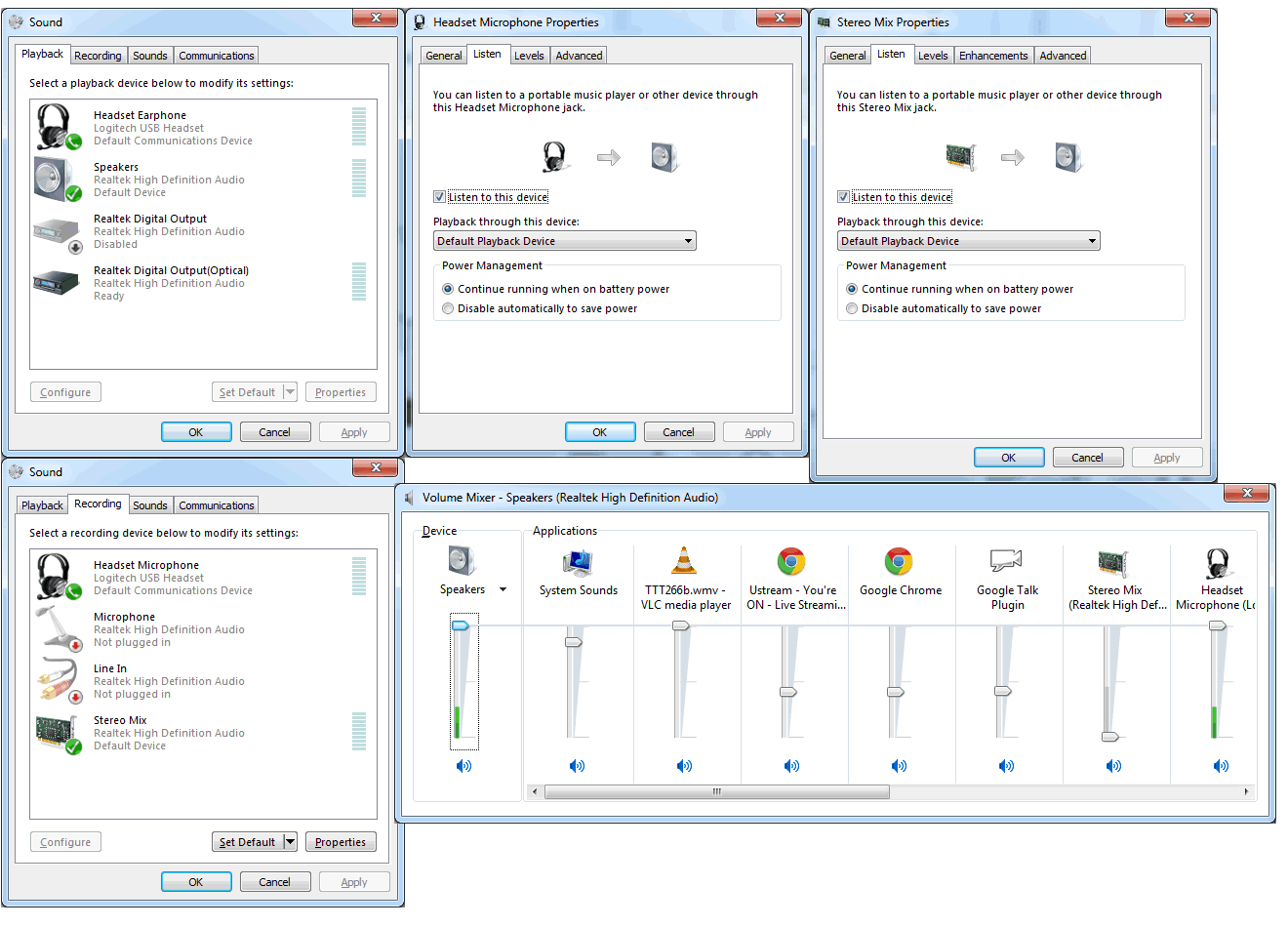
By default, most computers are set up to record from your
microphone. This needs to be changed. Using Windows Volume Mixer,
set the Recording Control Properties of your soundcard to 'stereo mix'
, 'What U Hear', or 'Wave Out Mix'. With some sounds cards
you will select his item, with others you will make sure it's
unmuted'.
In
Sound
& Audio Device settings, select your sound card as
the recording device in the 'Audio' and 'Voice' tabs.
Open Audacity.
In Edit/Preferences/Audio I/O , select your sound card as
your recording device.
Open the Audio settings of your telephony program.
In Skype, it's under Tools/Options/Audio Settings. For
microphone, select your USB microphone.
Install
Virtual Audio Cables (the
trial version will work for
experimentation purposes, but to produce actual webcasts, you will need
to purchase the full version (US$30). Go to Virtual Audio Cable in your
start menu and click 'Audio
Repeater'. In the 'wave in' section, select your
USB mic. In 'wave out', select your sound card. For
total buffer, select 100. You can experiment with the other settings,
but it shouldn't be necessary to change any of them. Press
'Start'. Open the Audio settings of your telephony program.
In Skype, it's under Tools/Options/Audio Settings. For
microphone, select your USB microphone.
If all is working properly, after you press start, you
should hear an echo when speaking. You are now capturing all
audio on your machine - your voice, voices of others in the telephony
call, audio played from media players, program noises, etc. (Note: you
might want to disable notification noises in Skype and other
IM programs)
Call someone (you can call skype lady at 'echo123'). Press
record in Audacity, and you should see that you are recording audio
when you speak and when the other person speaks. If so, you're ready to
move on to streaming. If not, let the troubleshooting begin.
Live Interactive
Streaming
Once you've succeeded in capturing all audio on your
computer, there are several ways to stream this audio so others can
hear.
Commercial
Streaming Services - sites like live365.com
and Streamguys.com
allow users to stream from their servers for a monthly fee
(US$10+/month)
Worldbridges
Shoutcast & Icecast Streams - after participating
in the Webcast Academy, 'interns' can apply for webcasting permission
from any streaming community that is part of the network. In order to
stream to a shoutcast or icecast server, you need to install a
streaming program on your local computer. Examples include Simplecast , SamBroadcaster, Oddcast,
& Winamp.
It is worth noting that online
presentation tools like WizIQ
and DimDim (free)
and Adobe Acrobat Connect and Elluminate
(very not free) can also be used to facilitate online conversation and
do not required the audio setup described above.
Whichever method you use
to stream, you'll need to set 'microphone' or 'audio in' to your
soundcard. Most of these tools provide a way to automatically
record or 'archive' what is being streamed. Webcasters may
want to use Audacity to record as well because it provides a higher
quality source recording and also provides a more accurate way to
measure audio levels during a webcast. Below are step-by-step
instructions for using Simplecast and Ustream.tv to stream
Simplecast Simplecast is a commerical program
available from SpacialAudio.com. that can be used
to stream to a shoutcast or icecast server. There is a free
trial version that does not expire.
Open Simplecast. Click 'Start'. Then, click
'Config' and on the 'General Options' page, select your sound
card under 'Capture Sound from Device'. Click OK.
You
should now see volume meter movement on the right side of the main
Simplecast Window.
Click 'Encoders'. Click the '+' sign to add an
encoder and choose either 'mp3 and mp3Pro' or 'Legacy mp3'.
In
the 'Converter' tab, select a format. Higher
bitrates (kb/s) will result in higher quality audio with less stream
delay, but may cause problems for those with relatively slow internet
connections.
In
the 'Server Details' tab, choose the appropriate server type, and enter
the access information for the server you're using.
In
the 'Stream Archive' tab, check 'save stream to file' and browse to
find the directory in which you'd like to save the recording.
When
you're ready to stream, RIGHT click the encoder and click
'start'. You should now be streaming. To check the stream, go to the
'listening' page for that stream (i.e. WebcastAcademy.net/live
) and click one of the media player icons. You should be able
to hear what is being streamed (with a 20~60 second delay).
Ustream
First you will need to register at Ustream.tv
Then
click 'Broadcast Now' or if you've created a show, click 'My Shows' and
then 'Broadcast Now'.
Either way, the Broadcaster window should pop up.
Click 'allow' when the Adobe Flash Settings window
appears.
Uncheck 'video broadcast' unless you plan to stream video.
Select your soundcard where it says 'Audio Source'. Maximize
audio quality unless you notice bandwidth problems. Check your Ustream
Volume setting to make sure it isn't peaking too much (volume meter
will show red if so). There are additional settings and tools
you can use toward the bottom of the window (Advanced settings, create
poll, cohost, etc.).
When you're ready to start streaming, click 'Start
Broadcast'. If you'd like to create a Ustream recording as
well, click 'Start Recording'
To check your stream, go to your Ustream listen page (i.e.
Ustream.tv/webcastacademy) or anywhere you've embeded the Ustream
player and click the play button. You'll get some echo when
listening, but should be able to hear what is being stream with very
little delay.
Tools and methods used to webcast are constantly evolving,
so the information above will likely be out of date soon. For updated
information or to ask questions about webcasting, please visit WebcastAcademy.net.
Toward the end of tonight's ETT Community Assembly, Dave expressed strong opposition to including policies against using offensive words during webcasts. I use the word 'offensive' after considering several others - obscenity, indecent, vulgar, curses, swear words None of those seem to fit. 'Foul language' might be appropriate, especialy in this case, but of course I'm talking about Carlin's seven words and the like (Thanks George for many laughs and for adding a lot to the conversation)
. In the context of ETT Policies and Worldbridgyness,
Sensitivity to offending others vs. Freedom of Expression &Genuinenss of Conversation
Dave's Legislation Concerns?
Standards vs Rules?
Well, that's what I'm thinking as I head upstairs. Got a full day on the road ahead, so will ponder these and other matters as a wander my way through the New England countryside.
Had the Red Sox-Yankees game on, and just before what could have been the game-winning pitch, Fox switches to Nascar.
Of course, my first immediate concern was getting reconnected to some kind of live coverage. First stop, mlb.com .
Not surprisingly (but still to my dismay), I got this when clicking gameday
At the time, I didn’t even think of radio. I don’t really have an am/fm receiver in the house other than the Net
Next stop was tweetscan.com . At first search I was able to immediately commiserate with other fans and upon refresh a few seconds later, got news of the final out.
Not quite the same as hearing the crowd roar and collectively hold its breath with each pitch, but compelling in it own way.
Two minutes later, I returned to mlb.com and found this graphic of the last at bat.
This picture is easily worth a thousand words… and could support a variety of language learning possibilities.
Was working on the graphics unit for Media Week in EFL537 earlier this evening and still need to put together something on social media. This little episode has provided some useful demo material for both.
The process of getting Educationbirdges registered as a non-profit has finally led to some long overdue research on putting together a terms of use and other policies for Educaitonbridges and Worldbridges. . Been looking over some of the polices at Justin.tv
- I quit my job selling cookware in order to join a company selling encyclopedias ... er, I mean ' home learning programs'.
#1 - I was an encyclopedia salesman.
I never wrote for the high school newspaper or literary magazine and am not known as a very active blogger, but...
If you have a question you'd like to ask about Worldbridges, please post it here and we'll do our best to addresss it during an upcoming Worldbridges General Assembly.
Town Hall / General Assembly Agenda
What is Worldbridges?
What is a Worldbridges Town Hall?
Those managing a Worldbridges community discuss aspects of development and address questions from members
What does it mean to be a 'member' of Worldbridges? (costs, benifits)
What is the budget of Worldbridges?
Who owns Worldbridges?
Starting rate - 100pts = $1
Worldbridges Points (Currency)
a blog on ...bridges.com/ costs 20pts/year
Media Storage Space costs... 2pts/MB
Server Coop Member Acct 20GB/1 stream/ shared 20MBS connection
Trademark Copyright Policies
To what extent to we own the Worldbridges Brand, how can it fairly be used by others
So, I've 'started' my personal blog a few times already and never really got it going. Now, armed with a fresh Drupal 5.0 beta and a Flock .7 I begin again.
I'm thinking that I should at least start by using this as a 'public personal archive' of the content I'm involved with producing and a To Do list/calendar of what's ahead.